
iOS App
Calendar Companion
Your calendar, supercharged
Query Tab
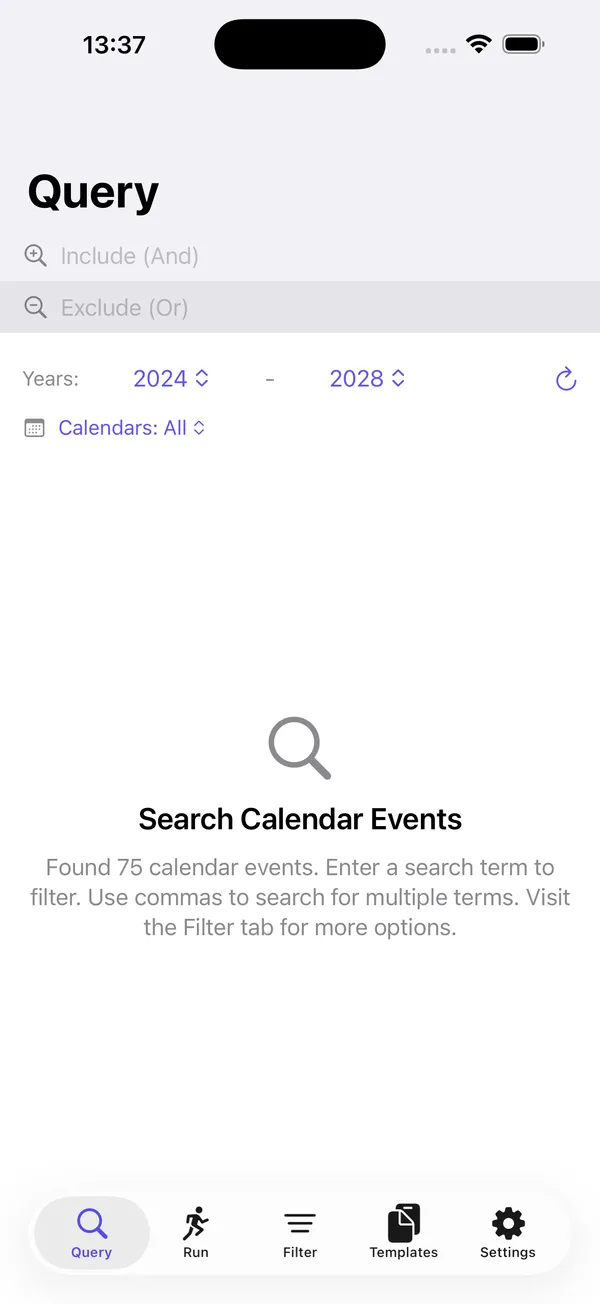
Query Tab
The Query tab is the main search interface for finding calendar events. It allows you to search with Include and Exclude terms, filter by year range, and view event details.
Controls
Include Search Field
The top search field, labeled "Include (And)" or "Include (Or)" depending on the logic setting in the Filter tab, is used to find events that match your search terms.
- Supports comma-separated search terms. For example, typing
meeting, reviewsearches for events containing both "meeting" and "review" (And logic) or either one (Or logic). - A clear button (X) appears on the right when text is entered. Tap it to clear the field.
- Results update automatically as you type.
- Your search text is saved via iCloud sync and restored the next time you open the app.
Exclude Search Field
The second search field, labeled "Exclude (And)" or "Exclude (Or)", removes matching events from the results.
- Works the same way as the Include field with comma-separated terms.
- Events that match the exclude terms are removed from the results produced by the Include field.
- Also persists across sessions via iCloud sync.
Year Range Pickers
Below the search fields is a row with "Years:" label and two dropdown pickers.
- Start Year (left picker): Selects the beginning of the date range. Range: 2000 to 2050. Defaults to the current year minus 2.
- End Year (right picker): Selects the end of the date range. Range: 2000 to 2050. Defaults to the current year plus 2.
- Refresh button (circular arrow icon, far right): Tap to manually reload calendar events for the selected year range.
- Changing either year picker automatically reloads all calendar events within the new range.
- The start year is always validated to be less than or equal to the end year.
Calendar Picker
Below the year range pickers, a calendar icon and dropdown menu appear when multiple calendars exist on the device.
- Displays "Calendars: All" when all calendars are selected.
- Displays "Calendars: X of Y" when only some calendars are selected (e.g., "Calendars: 3 of 5").
- Tapping the dropdown opens a menu with:
- "Select All" button at the top to quickly select all calendars.
- A divider line.
- Individual calendar toggles with checkmarks indicating which calendars are currently selected.
- Only appears when the device has more than one calendar.
- Deselecting the last remaining calendar is prevented — at least one must always be selected.
- Calendar selection persists across sessions via iCloud sync.
- Filtering affects both search results and the event count shown in the empty state.
Keyboard Toolbar
When the keyboard is visible (while typing in either search field), a toolbar appears above it with two buttons:
- Refresh button (left): Reloads all calendar events.
- Close button (X, right): Dismisses the keyboard.
Results List
When search terms match events, a scrollable list is displayed. Each row shows:
- A calendar icon on the left
- The event title
- The start date/time and end date/time (formatted as abbreviated date and shortened time)
- The calendar name the event belongs to
- A chevron (>) on the right indicating the row is tappable
Tapping a result opens the Event Detail view in a sheet, which shows full event information and provides an Edit option.
Results are sorted chronologically by start date, then by end date.
Navigation Title
- Displays "Query" when no search terms are entered.
- Changes to "Query: N found" (where N is the result count) when a search is active.
Conditional States
The main content area displays one of several states depending on the situation:
Loading -- A spinner is shown with either "Loading events..." or "Loading [YEAR]... (X of Y)" as each year in the range is fetched.
Calendar Access Required -- Shown when the app has not yet been granted calendar permission. Displays a blue calendar icon, a brief privacy explanation ("Data stays on your device and only syncs with your iCloud"), and a "Grant Access" button.
Calendar Access Denied -- Shown when the user has previously denied calendar access. Displays a red calendar icon with an exclamation mark and an "Open Settings" button that navigates to the iOS Settings app.
No Search Terms -- The default state after events have loaded. Shows a magnifying glass icon, the heading "Search Calendar Events", and a message indicating how many events were found along with instructions to enter a search term.
No Results -- Shown when search terms are entered but nothing matches. Displays an exclamation magnifying glass icon and the message "No events found matching your search criteria".
Search Behavior
The Include and Exclude fields work together in two phases:
- Phase 1 (Include): Events matching the include terms are gathered. If the Include field is empty but the Exclude field has terms, all events are used as the starting set.
- Phase 2 (Exclude): Events matching the exclude terms are removed from the Phase 1 results.
Search behavior is controlled by settings in the Filter tab. The Include and Exclude fields each have independent settings for:
- Scope: "Just title" searches only event titles. "All" searches titles, locations, and notes.
- Type: "Contains..." matches anywhere in the field. "Begins with..." matches only at the start. "Ends with..." matches only at the end.
- Logic: "And" requires all comma-separated terms to match. "Or" requires any one term to match.
- Case: "Case insensitive" (default) ignores capitalization. "Case sensitive" requires exact case matching.
The current logic setting (And/Or) is shown in the placeholder text of each search field so you always know which mode is active.
Examples
- Find all meetings: Type
meetingin the Include field. - Find meetings but not standups: Type
meetingin Include, then typestandupin Exclude. - Find events about Q1 or Q2: Set the Include logic to "Or" in the Filter tab, then type
Q1, Q2in the Include field. - Find events with a specific location: Set the Include scope to "All" in the Filter tab, then type the location name in the Include field.
- Narrow by year: Adjust the Start Year and End Year pickers to limit results to a specific time period.
Run Tab
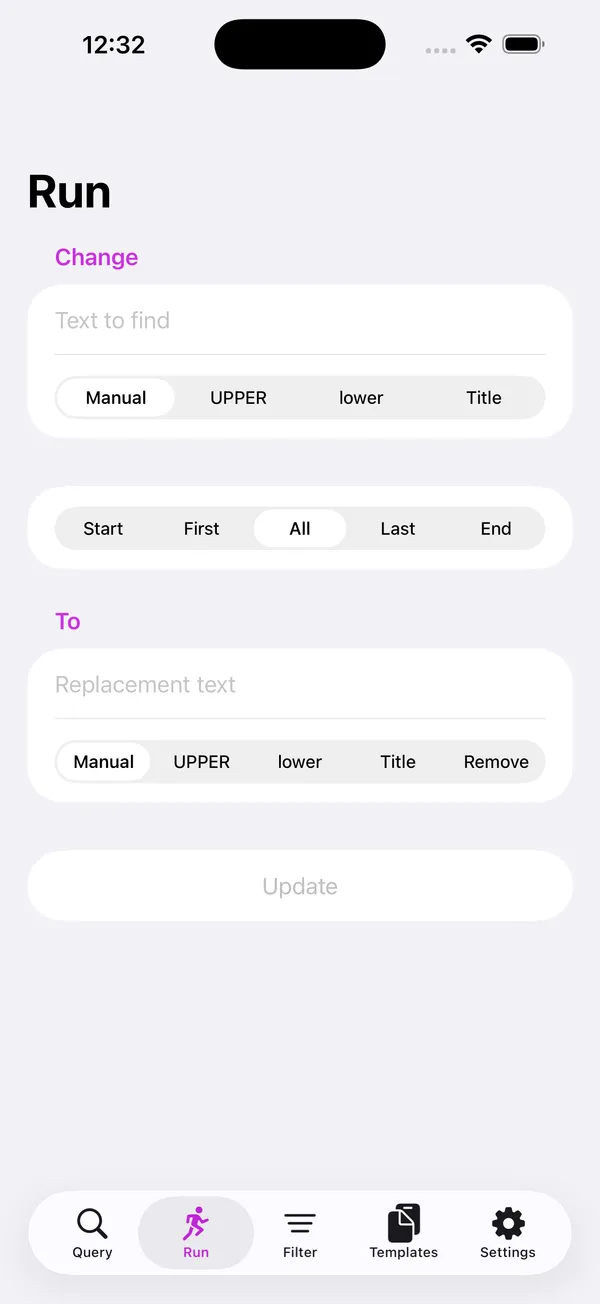
Run Tab
Warning: Use this tool with care. The Run tab performs batch modifications to your calendar event titles. Once you tap the Update button, the changes are applied immediately and cannot be undone. There is no undo, no confirmation dialog, and no way to revert to the original titles automatically.
Before tapping Update, always scroll through the Affected Events list at the bottom of the screen. This list shows you exactly which events will be changed and what their new titles will look like. Take a moment to review the original titles (shown with a
strikethrough) and the replacement previews below them. If anything looks unexpected — a wrong match, an unintended replacement, or an event you didn't mean to modify — adjust your search text, occurrence setting, or transform mode before proceeding.Think of it this way: the preview is your safety net. The Update button is permanent.
The Run tab performs batch find-and-replace operations on calendar event titles. It shows a live preview of all affected events before applying changes, so you can verify the results before committing.
Controls
Change Section
The Change section (purple header) contains the text you want to find in event titles.
Text to find field: Enter the text you want to locate in event titles.
- A clear button (X) appears on the right when text is entered. Tap it to clear the field.
- Clearing this field also clears the replacement "To" field.
- Your search text is saved via iCloud sync and restored the next time you open the app.
Case Transform segmented picker: Applies a case transformation to the text in the "Text to find" field.
- Manual (default): No automatic transformation. The text remains as you typed it.
- UPPER: Converts the "Text to find" to UPPERCASE.
- lower: Converts the "Text to find" to lowercase.
- Title: Converts the "Text to find" to Title Case.
- The picker resets to Manual after applying the transformation, leaving the converted text in place.
Occurrence Section
A segmented picker that controls which occurrence(s) of the matched text to replace within each event title.
- Start: Replaces the match only if it appears at the beginning of the title.
- First: Replaces only the first occurrence in the title.
- All (default): Replaces every occurrence in the title.
- Last: Replaces only the last occurrence in the title.
- End: Replaces the match only if it appears at the end of the title.
To Section
The To section (purple header) contains the replacement text.
Replacement text field: Enter the text that will replace the matched text.
- This field is hidden when the Transform picker is set to "Remove".
- A clear button (X) appears on the right when text is entered.
- Your replacement text is saved via iCloud sync and restored the next time you open the app.
Transform segmented picker: Applies a transformation to the replacement text or removes the match entirely.
- Manual (default): No automatic transformation. The replacement text is used as typed.
- UPPER: Auto-converts the replacement text to UPPERCASE.
- lower: Auto-converts the replacement text to lowercase.
- Title: Auto-converts the replacement text to Title Case.
- Remove: Deletes the matched text from event titles. The replacement text field is hidden in this mode.
Update Button
A full-width prominent button that applies the find-and-replace operation to all matching events.
- Disabled when no text is entered in the "Text to find" field or when no events match the search text.
- Appears at both the top and bottom of the affected events list for convenience.
- Tapping it applies the replacement to all matching calendar events.
Affected Events List
Displays a live preview of all events that will be changed.
- Header: Shows "Affected Events (N)" where N is the count of matching events.
- Each row displays:
- The original title with strikethrough formatting, showing what will be replaced.
- The new title below it, previewing the result after the replacement is applied.
- When no events contain the search text, the message "No events match '[text]'" is displayed.
Loading Overlay
When the update is in progress, a semi-transparent overlay appears with a spinner and the message "Updating events..." to indicate that the batch operation is being applied.
Examples
Rename "Standup" to "Daily Sync": Enter
Standupin the Change field, enterDaily Syncin the To field, and set Occurrence to All. Tap Update to rename every occurrence across all matching events.Remove a "DRAFT: " prefix: Enter
DRAFT:in the Change field, set Transform to Remove, and set Occurrence to Start. Only events whose titles begin with "DRAFT: " will be affected, and the prefix will be deleted.Uppercase all occurrences of "meeting": Enter
meetingin the Change field, then tap the UPPER Case Transform to convert it toMEETING. EnterMEETINGin the To field and set Occurrence to All. Every instance of "meeting" (case-sensitive) will be replaced with "MEETING".Fix a typo in event titles: Enter the misspelled word in the Change field and the corrected spelling in the To field. Set Occurrence to All and tap Update.
Add a prefix to matching events: Enter the text to match in the Change field. In the To field, type the desired prefix followed by the matched text. Set Occurrence to First to avoid duplicating replacements.
Filter Tab
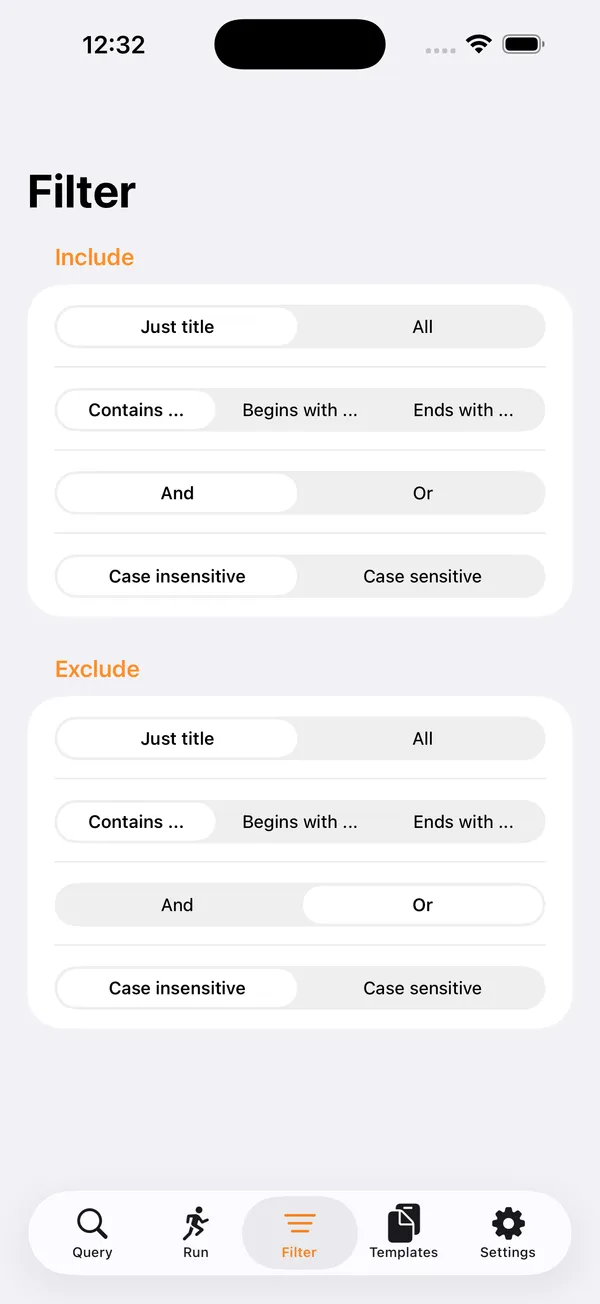
Filter Tab
Overview
The Filter tab configures how search operations work in the Query tab. It has two sections — Include and Exclude — each with identical filter pickers that control search behavior independently.
Controls
Include Section
Controls how the Include search field in the Query tab operates.
Scope (segmented picker)
- Just title — Search only event titles.
- All — Search event titles, locations, and notes.
Type (segmented picker)
- Contains ... (default) — Text appears anywhere in the field.
- Begins with ... — Text must be at the start.
- Ends with ... — Text must be at the end.
Logic (segmented picker)
- And — All comma-separated terms must match.
- Or — Any comma-separated term can match.
Case (segmented picker)
- Case insensitive (default) — "Meeting" matches "meeting", "MEETING", etc.
- Case sensitive — Exact case must match.
Exclude Section
Controls how the Exclude search field in the Query tab operates. Has the same four pickers as the Include section, but applies to exclude terms.
Scope
- Just title — Search only event titles.
- All — Search event titles, locations, and notes.
Type
- Contains ... — Text appears anywhere in the field.
- Begins with ... — Text must be at the start.
- Ends with ... — Text must be at the end.
Logic
- And — All comma-separated terms must match.
- Or — Any comma-separated term can match.
Case
- Case insensitive — "Meeting" matches "meeting", "MEETING", etc.
- Case sensitive — Exact case must match.
How It Works
- All settings apply in real-time — changes immediately affect search results on the Query tab.
- Settings persist across sessions via iCloud sync.
- Include and Exclude sections are independent — you can have different logic for each.
Examples
Search titles only, case-insensitive, any term — Set Include Scope to "Just title", Logic to "Or", and Case to "Case insensitive". Then enter comma-separated terms in the Query tab's Include field and any matching term will return results.
Exclude events starting with "DRAFT" — Set Exclude Type to "Begins with...", then type "DRAFT" in the Query tab's Exclude field. Any event whose title (or searched fields) starts with "DRAFT" will be removed from results.
Search all fields with exact case — Set Include Scope to "All" and Case to "Case sensitive". This is useful for finding events with specific acronyms like "AWS" without matching words such as "laws".
Templates Tab
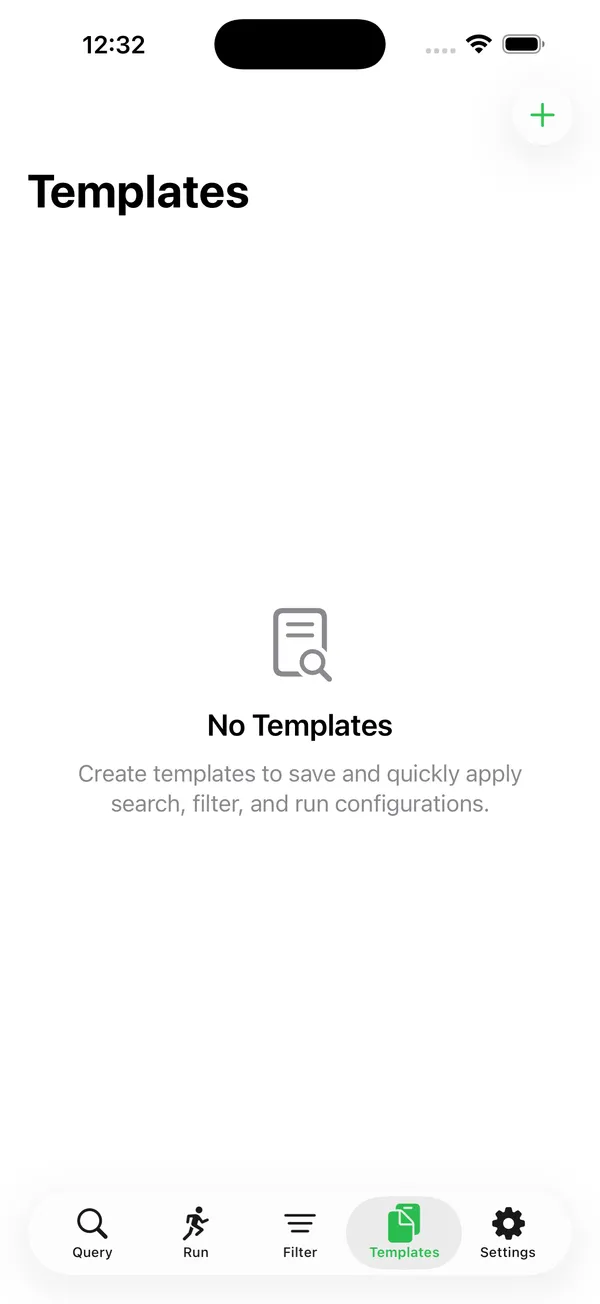
Templates Tab
The Templates tab manages saved search configurations (templates). Templates store complete Query, Filter, and Run settings that can be quickly applied. This lets you save frequently used searches and batch operations so you can recall them with a single tap.
Controls
Navigation Bar
- Title: Displays "Templates" at the top of the screen.
- + button (top right): Creates a new template and opens the Template Detail view.
- Select button (top left, only visible when templates exist): Enters edit/selection mode for bulk operations.
Template List
A searchable list of all saved templates. A "Search templates" search bar appears at the top for filtering.
Each template row displays:
- Template title (bold) — the name you gave the template.
- Include search text (if set) — shown as "Include: [text]".
- Exclude search text (if set) — shown as "Exclude: [text]".
- Year range — shown as "Years: [start] – [end]".
- Change/Remove text (if set) — shown as "Change: [text]" and "To: [text]", or "Remove: [text]" when the transform is set to Remove.
Swipe left on any template to delete it. Tap a template to open its Template Detail view for viewing or editing.
Edit Mode
After tapping "Select", the list enters edit/selection mode:
- Select All / Deselect All button — Toggles selection of all visible templates.
- Delete (N) button — Displays the count of selected templates. Turns red when one or more templates are selected. Tapping it shows a confirmation prompt: "Delete X template(s)?" with "Delete" (destructive) and "Cancel" options.
- Done button — Exits edit mode and returns to the normal list view.
Empty State
When no templates have been created, the list area shows:
- A document icon with a magnifying glass.
- The heading "No Templates".
- The message "Create templates to save and quickly apply search, filter, and run configurations."
Template Detail View
Opened by tapping an existing template or the + button to create a new one. The detail view is organized into collapsible sections with green headers.
Title Section
- Template name field (required) — You must fill in a name before the template can be saved.
Apply Section (existing templates only)
- Apply to Tabs button — Applies all of the template's saved settings to the Query, Filter, and Run tabs, then navigates to the Query tab so you can immediately see results.
Include Search Section
- Text field for include search text.
- Filter pickers for Scope, Type, Logic, and Case — these mirror the same options available in the Filter tab.
Exclude Search Section
- Text field for exclude search text.
- Filter pickers for Scope, Type, Logic, and Case — identical options to the Include section, configured independently.
Years Section
- Start Year picker — selects the beginning of the date range (2000 to 2050).
- End Year picker — selects the end of the date range (2000 to 2050).
Run Section
- Change text field — the text to find for batch operations.
- Transform picker — Manual, UPPER, lower, Title, or Remove.
- Occurrence picker — Start, First, All, Last, or End.
- To text field — the replacement text. Hidden when Transform is set to "Remove".
Template Actions (existing templates only)
- Copy Template — Duplicates the template with a " Copy" suffix appended to the name.
- Delete Template — Red destructive button that permanently removes the template.
How It Works
- Templates capture a complete snapshot of search and batch-update settings: include/exclude text and filters, year range, and run configuration.
- When you tap "Apply to Tabs", every saved setting is written to the corresponding tab (Query, Filter, Run) and the app switches to the Query tab.
- Templates are persisted locally and sync via iCloud, so they are available across your devices.
- The search bar filters templates by name, making it easy to find a specific template in a long list.
Examples
Save a "Weekly Meetings" search — Create a template with Include text
meeting, standup, Logic set to "Or", and Years 2024–2026. Whenever you need this search, open Templates, tap it, and hit "Apply to Tabs".Batch rename preset — Create a template with Change set to
DRAFT:and Transform set to "Remove". This gives you a one-tap way to strip draft prefixes from event titles.Quick apply workflow — Tap a saved template, then tap "Apply to Tabs". The app instantly configures all tabs with the template's settings and navigates to the Query tab so you can review or run the search immediately.
Bulk delete old templates — Tap "Select", use "Select All" to highlight every template, then tap the red "Delete" button and confirm. This clears out templates you no longer need.
Duplicate and modify — Tap an existing template, then tap "Copy Template". Edit the copy's name and settings to create a variation without losing the original.
Settings Tab
Settings Tab
Overview
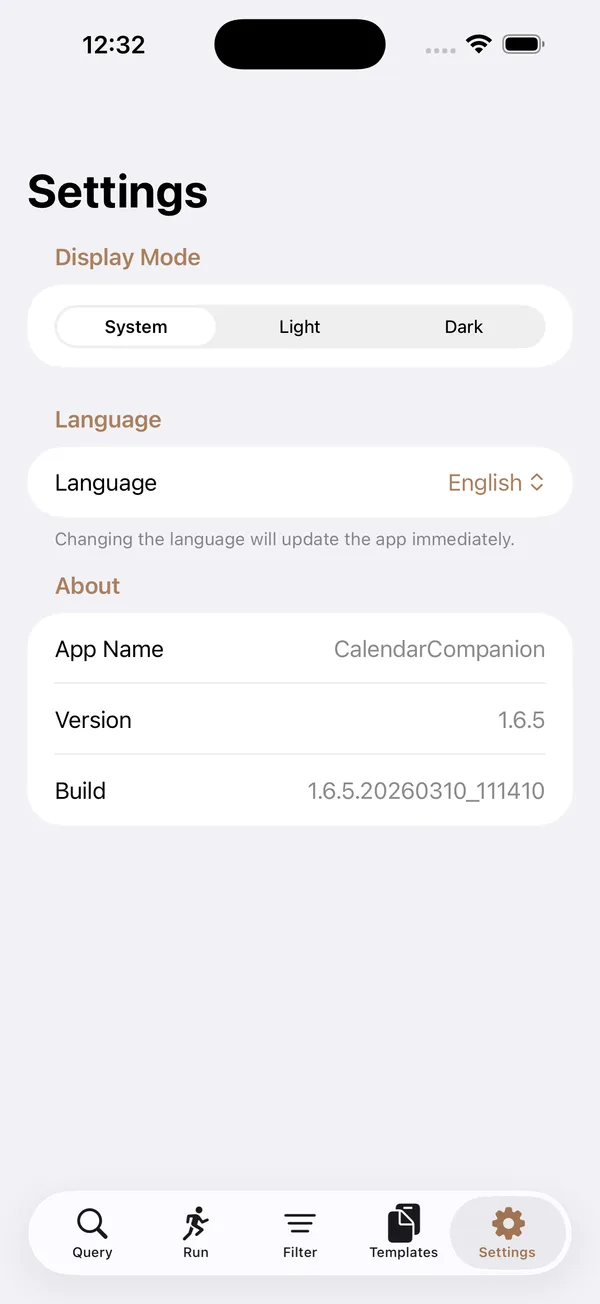
The Settings tab controls app appearance, tab colors, and language, and shows app information. It has three sections — Display Mode, Language, and About.
Controls
Display Mode Section
Controls the visual appearance of the app.
Appearance (segmented picker)
- System (default) — Follows the device's light/dark mode setting.
- Light — Always uses light appearance.
- Dark — Always uses dark appearance.
Changes apply immediately to the entire app.
Tab Colors (navigation link)
Opens the Tab Colors screen where you can customize the accent color used for each tab. A row of small colored circles previews the current tab colors.
Tab Colors Screen:
- Use Single Color for All Tabs (toggle) — When enabled, a single color picker appears that sets the same color for all tabs. When disabled, individual color pickers appear for each tab (Query, Run, Filter, Templates, Settings).
- Color Pickers — Tap any color picker to choose a custom color. Opacity is not adjustable.
- Reset (toolbar button) — Restores all tab colors to their defaults and disables single-color mode.
Tab color changes apply immediately and are synced via iCloud.
Language Section
Controls the language used for all UI elements across the app.
Language (dropdown picker)
- English
- Nederlands (Dutch)
- Deutsch (German)
- Français (French)
- Español (Spanish)
- Português (Portuguese)
- Italiano (Italian)
Changing the language will update the app immediately. All UI elements across all tabs are translated instantly.
About Section
Displays read-only app information.
- App Name — Shows the app's display name (CalendarCompanion).
- Version — Shows the current marketing version (e.g., 1.6.5).
- Build — Shows the full build number with timestamp (e.g., 1.6.5.20260310_111410).
Settings Persistence
- All settings are stored in iCloud Key-Value Storage.
- Changes sync automatically across all devices signed into the same iCloud account.
- Falls back to local storage (UserDefaults) when iCloud is unavailable.
- Language preference syncs across devices via iCloud.
Features
Mass Update
Intelligently update your event titles in bulk with powerful find-and-replace.